What it is
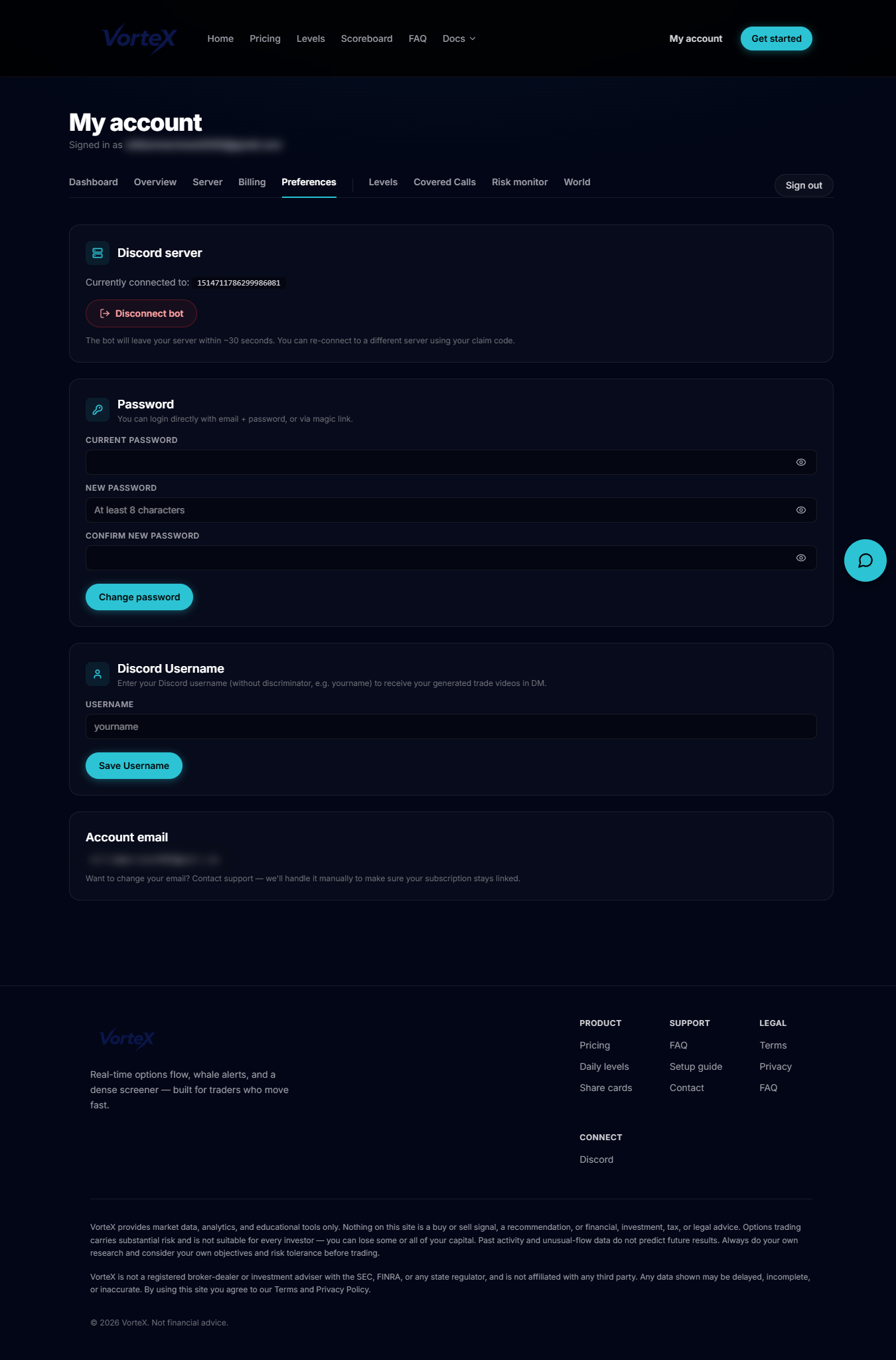
Preferences is where you manage your Discord server connection, your login password, your Discord username (used to DM you generated trade videos) and view your account email — all in one page.
Open it
From the account navigation, open Preferences, which loads at /account/preferences.
Discord server connection
The Discord server card shows the currently connected server ID if the bot is linked, with a Disconnect bot button that removes the bot from your server within about 30 seconds. If no server is connected yet, a Setup instructions link points you to using your claim code to connect one.
Password and Discord Username
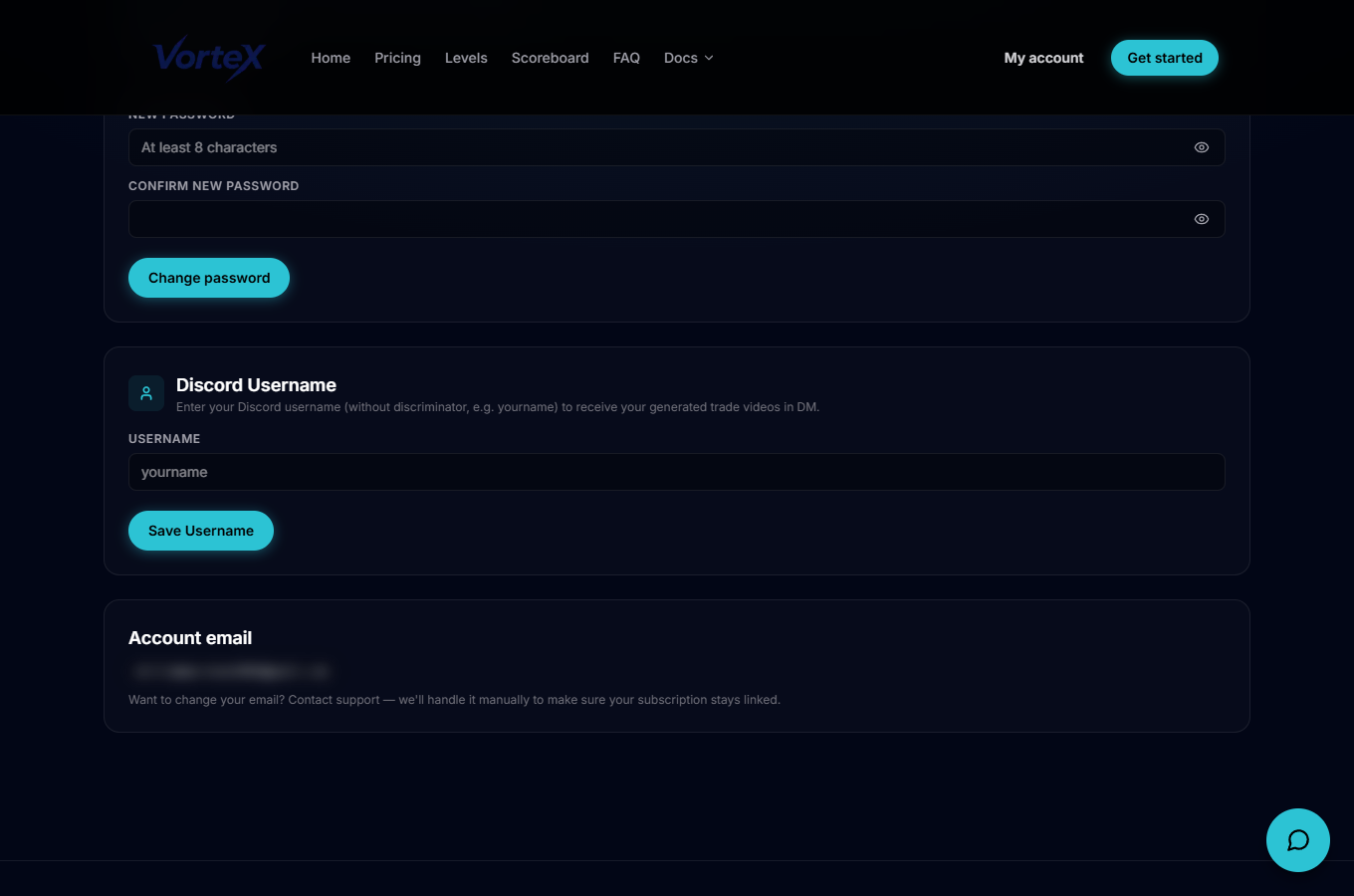
The Password card lets you set a password (if you've only ever used magic-link login) or change your existing one, requiring your current password, a new password, and a confirmation meeting the minimum length. The Discord Username field is your Discord username without the discriminator — set it so the bot can DM you generated trade videos.
Reading confirmations and your account email
After each action, a confirmation banner appears at the top (bot disconnected, password set/updated, or Discord username updated); errors show in a red banner. The Account email card at the bottom shows your login email — to change it, contact support so your subscription stays correctly linked.